

Send Survey Responses
Directly to Slack
Get a Slack message every time someone fills out your survey.
Documentation
How It Works
Someone fills out your survey → Mapster instantly posts a formatted message to your Slack channel. No third-party tools required.
1
Create Webhook
Create a Slack Incoming Webhook for your channel
2
Paste URL
Add the webhook URL in your Mapster Alerts page
3
Done
Every new response is posted to Slack in real time
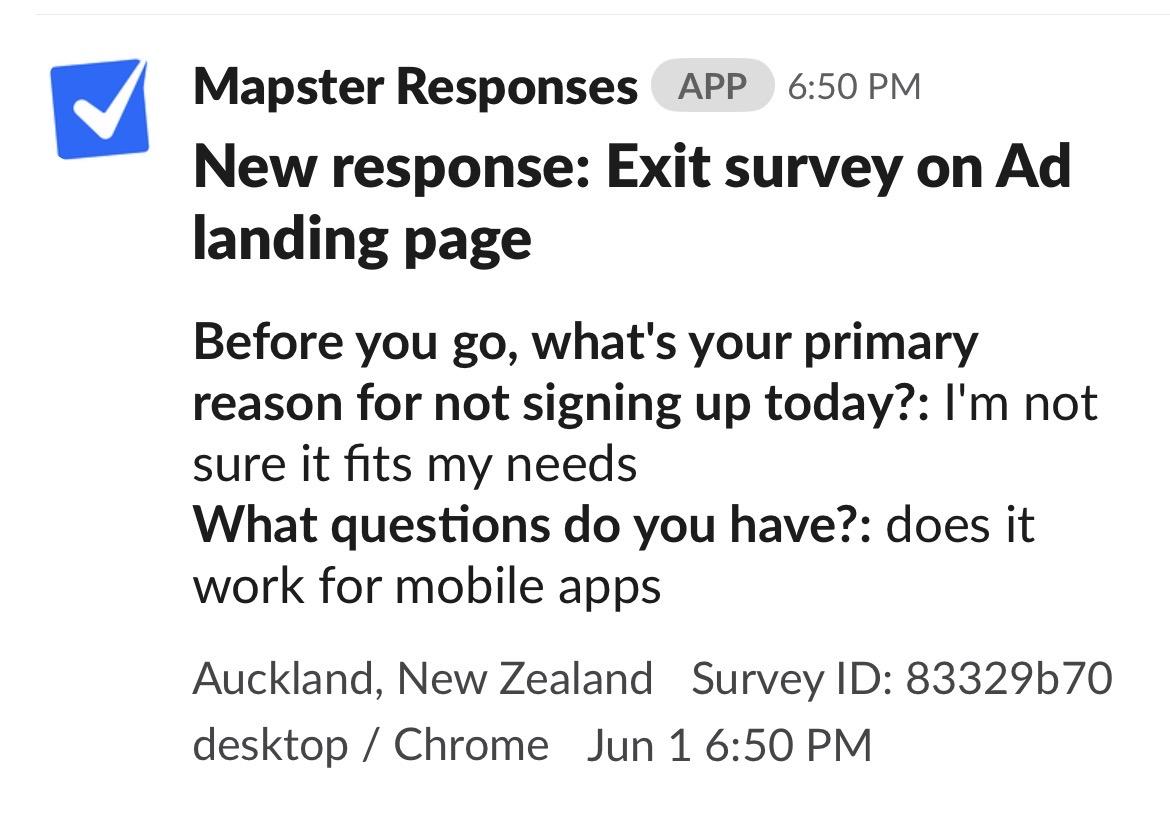
What You'll See in Slack
Each response appears as a nicely formatted Slack message with:
- •Survey name - which survey the response came from
- •All answers - each question and answer, formatted and readable
- •User attributes if passed - any custom data you passed (plan, company, etc.)
- •Location - country and city of the respondent
- •Device & browser - desktop, mobile, or tablet
- •Timestamp - when the response was submitted
Setup Guide
Step 1: Create a Slack Incoming Webhook
- Go to api.slack.com/apps and click Create New App
- Choose From scratch
- Name it anything (e.g. “Mapster”) and select your workspace
- In the left sidebar, click Incoming Webhooks
- Toggle Activate Incoming Webhooks to On
- Click Add New Webhook to Workspace at the bottom
- Pick the channel you want responses posted to, then click Allow
- Copy the webhook URL - it looks like
https://hooks.slack.com/services/T.../B.../xxx
Step 2: Add the URL in Mapster
- Log in to your Mapster dashboard
- Go to the Alerts page
- In the Slack section, paste your webhook URL
- Click Add
Step 3: You're done
That's it! Every new survey response will now be posted to your Slack channel as a formatted message. You can add multiple webhooks for different channels if you want responses going to more than one place.
Good to Know
- •Responses are sent instantly - no delays or batching
- •You can connect up to 10 Slack webhooks per account
- •Each webhook receives responses from all your account surveys by default
- •If a webhook URL becomes invalid or you remove it, it will be automatically removed from Mapster too
- •Want to send to multiple slack channels? Just add a separate webhook for each
Need help? Let us know